-Nov-29-2022-02-30-49-2530-PM.png?width=880&height=133&name=Scandlearn%20Logo%20Blue%20(fullsize)-Nov-29-2022-02-30-49-2530-PM.png)
Scenario 1: Existing User Account to Connect Microsoft Account with Non-Scandlearn Mail ID
- Login: Access your user account and navigate to the profile page (/learner/profile for Learner).
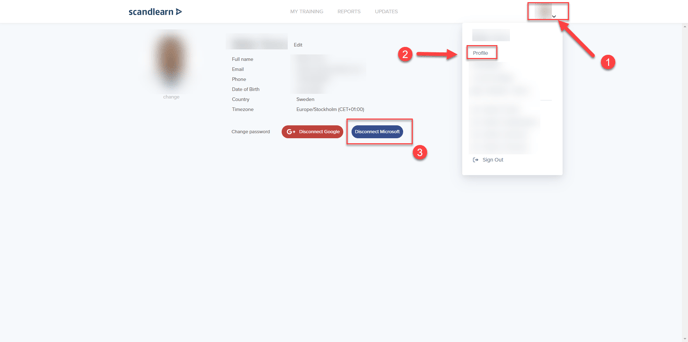
- Connect Microsoft: Click on the "Connect Microsoft" button.
- Microsoft Authentication: You'll be redirected to the Microsoft authentication page.
- Login & Permission: Log in to your Microsoft account and grant permission by clicking the "Accept" button.
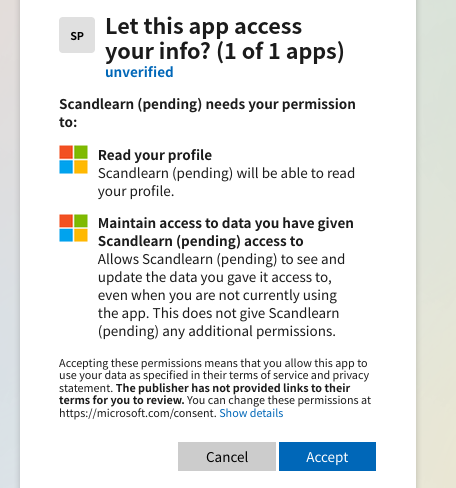
- Connection Established: Your Microsoft account is now connected, and you'll be redirected back to the Scandlearn profile page.
- Logout/Login: Log out, and then log in using your Microsoft credentials.
Scenario 2: Existing Scandlearn User Registered with Microsoft Mail-ID
- Access Login Page: Go to the Scandlearn login page. https://app.scandlearn.net/login
- Sign In with Microsoft: Click the "Sign In with Microsoft" button.
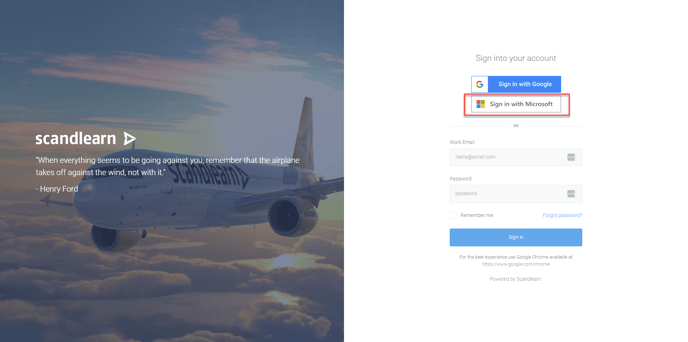
- Microsoft Authentication: You'll be redirected to the Microsoft authentication page.
- Login & Permission: Log in to your Microsoft account (which should match your Scandlearn registered mail ID) and grant permission by accepting.
- Automatic Connection: Your Microsoft account is now automatically connected, and you'll be logged in. You'll be redirected to the logged-in user landing page.
Scenario 3: New User Invitation and Login Using Microsoft
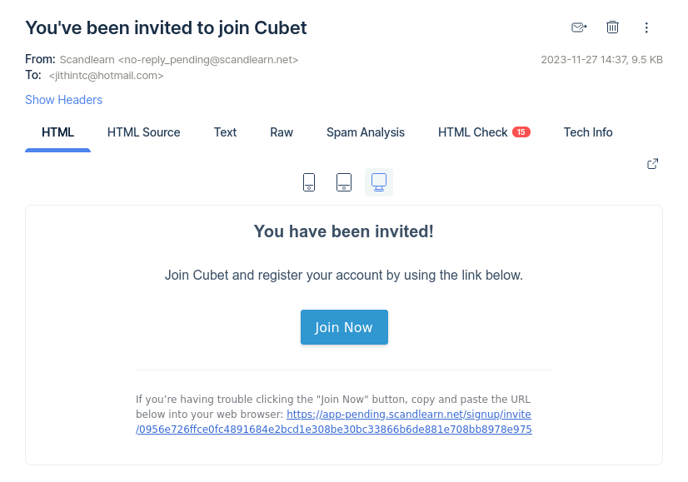
- New User Invitation: The new user receives an invitation using their Microsoft mail ID and accepts it.
- Join Now & Register: Click on the "Join Now" button and register your profile on Scandlearn. (Important: Accept the invitation first before signing in with Microsoft to avoid redirection to a forbidden page.)
- Logout & Sign In: Log out and click the "Sign In with Microsoft" button (similar to scenario 2).
- Microsoft Authentication: You'll be redirected to the Microsoft authentication page.
- Login & Permission: Log in using your Microsoft account (matching the Scandlearn registered mail ID) and grant permission by accepting.
- Automatic Connection: Your Microsoft account is now connected, and you're logged in. You'll be redirected back to the logged-in user landing page.